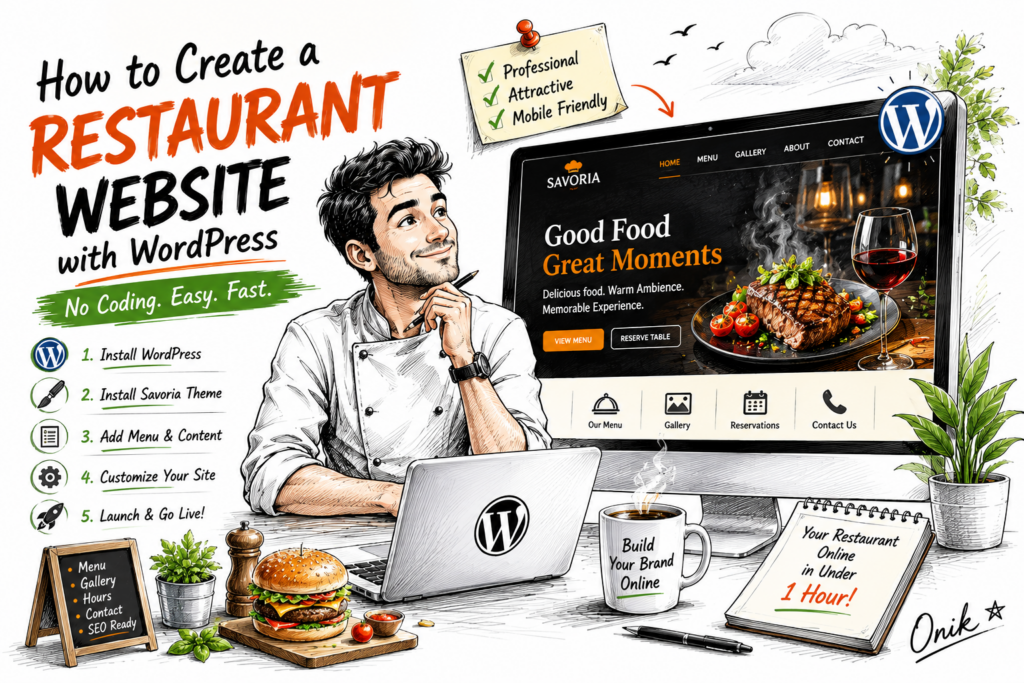
Knowing how to create a restaurant website with WordPress is one of the most valuable skills a food business owner can have in 2026. Every restaurant, cafe, bistro, and food business needs a website. Not a Facebook page — a proper website with your menu, gallery, opening hours, and contact details that shows up when someone searches for “restaurants near me” or types your restaurant name directly into Google.
The good news is that creating a restaurant website with WordPress requires no coding, no web development experience, and far less money than most restaurant owners expect. This guide shows you exactly how to do it, step by step.
Why WordPress for Restaurant Websites?
WordPress powers over 43% of all websites on the internet. For restaurant owners, the advantages are clear:
- Full ownership — your website, your content, your data. No platform can shut you down or change its algorithm and wipe out your presence overnight
- SEO control — WordPress with a good SEO plugin gives you complete control over how Google sees your site
- No monthly platform fees — unlike website builders that charge ₹500–₹2,000/month, WordPress hosting costs ₹150–₹300/month with no per-booking commissions
- Scales with your business — add online ordering, reservation systems, or loyalty programmes later without rebuilding from scratch
According to Google’s consumer insights research, 77% of customers visit a restaurant’s website before dining there for the first time. A professional website isn’t optional — it’s the first impression your restaurant makes.
What You Need to Get Started
- Domain name — yourrestaurant.com (₹800–₹1,200/year)
- Web hosting — Bluehost or SiteGround recommended (₹150–₹300/month)
- WordPress — free, one-click install from your hosting dashboard
- A restaurant WordPress theme — we recommend Savoria (free)
- Your content — menu items, food photos, opening hours, address
Step 1 — Set Up WordPress Hosting
Log into your hosting control panel and use the one-click WordPress installer (Softaculous or WordPress Toolkit). Enter your site name, admin email, and a strong password. WordPress installs in about 2 minutes.
Go to yourdomain.com/wp-admin and log in. You’re now inside your WordPress admin — this is where you’ll manage everything.
Step 2 — Install the Savoria Restaurant Theme
Savoria is a free WordPress theme built specifically for restaurants, cafes, bistros, and food businesses. It includes six complete page templates — Homepage, Menu, Gallery, Contact, About, and Blog — designed with a dark luxury aesthetic and gold accents that communicate quality dining without any coding.
To install Savoria:
- Download the Savoria .zip file from w3domicile.com/theme/savoria/
- In WordPress admin go to Appearance → Themes → Add New → Upload Theme
- Select the savoria.zip file and click Install Now
- Click Activate
Your restaurant website now has a professional design. Next, you’ll add your content.
Step 3 — Configure Your Restaurant Details in the Customizer
Go to Appearance → Customize to open the live preview editor. This is where you add all your restaurant’s information without touching code:
Restaurant Info Panel
- Restaurant Name — appears in the header and footer
- Phone Number — click-to-call link on mobile devices
- Email Address — shown on the contact page
- Address — your physical location
- Opening Hours (Weekdays) — e.g. “Mon–Sat: 11:00 AM – 11:00 PM”
- Opening Hours (Weekends) — e.g. “Sunday: 12:00 PM – 10:00 PM”
Hero Section Panel
- Tagline — your restaurant’s headline, e.g. “Fresh Italian Cuisine in the Heart of the City”
- Sub-heading — a supporting line, e.g. “Where every meal becomes a memory”
Social Media Panel
Add your Facebook, Instagram, and Twitter links. These appear in the footer and are particularly important for restaurants — Instagram is often where food lovers discover new places to eat.
Click Publish when done.
Step 4 — Build Your Menu Page
Your menu page is the most important page on your restaurant website. Customers check it before deciding whether to visit or order. In WordPress, go to Pages → Menu → Edit.
The Savoria menu page uses tabbed sections — Starters, Mains, Desserts, and Drinks. For each item, include:
- Dish name
- Brief description (1–2 sentences)
- Dietary tags: Vegetarian 🟢, Vegan 🌱, Gluten-Free ⭐
- Price
Keep descriptions short and appetising. “Chargrilled chicken breast with roasted garlic aioli and seasonal vegetables” sells better than “Grilled chicken with sauce.” According to menu design research, descriptive menu item names increase sales by 27% compared to plain names.
Step 5 — Add Your Gallery
Food photography is your most powerful marketing tool online. The Savoria gallery page supports a masonry grid with full-screen lightbox — upload your best food photos, ambience shots, and event images.
If you don’t have professional food photos yet, use natural light and shoot from directly above (flatlay style) or at a 45-degree angle. Modern smartphone cameras are more than adequate. Free tools like Canva can help you create professional-looking title cards and promotional graphics to fill gaps in your photo library.
Step 6 — Set Up Your Contact Page
Your contact page should make it effortless for customers to reach you. Savoria’s contact page includes:
- Phone and email links — tappable on mobile
- Full address with opening hours (all from Customizer — no re-entering data)
- Google Maps embed — go to Google Maps, find your location, click Share → Embed a map, copy the iframe code, and paste it into the Customizer’s Maps Embed field
No contact form plugin is required. For reservations, a phone link or WhatsApp link is almost always more effective than a form — customers want to confirm availability instantly, not wait for an email reply.
Step 7 — Essential Plugins for Restaurant Websites
Keep plugins minimal. These are the only ones worth installing:
- Rank Math SEO — optimise each page for local search terms like “best Italian restaurant [your city]”
- WP Super Cache — free caching plugin that significantly speeds up your site
- UpdraftPlus — automated daily backups so you never lose your content
Avoid installing online ordering plugins unless you’ve researched the commission structure carefully. Many “free” ordering plugins take 5–15% commission per order — more than a third-party platform. Build your own ordering process via WhatsApp first (share your menu PDF, take orders via message) and only move to a plugin when volume justifies the setup cost.
Step 8 — Local SEO for Your Restaurant
Local SEO is what makes customers find you when they search “restaurant near me” or “best cafe in [your city].” Three actions make the biggest difference:
1. Google Business Profile
Claim and complete your Google Business Profile. Add photos, opening hours, your menu link, and respond to every review. This is the single highest-impact action for restaurant local SEO — it directly controls what appears in Google Maps results.
2. Target local keywords on your website
Use Rank Math to set focus keywords for each page:
- Homepage: “restaurant in [your area]” or “[cuisine type] restaurant [city]”
- Menu page: “[cuisine type] menu [city]”
- Blog posts: “best [dish] in [city]”, “[cuisine] restaurants near [landmark]”
3. Get listed in local directories
Zomato, Swiggy, TripAdvisor, and JustDial all pass authority to your website through backlinks. Complete your profile on each with your website URL included.
Restaurant Website Cost Breakdown
| Item | Cost | Frequency |
|---|---|---|
| Domain name | ₹800 – ₹1,200 | Per year |
| Web hosting | ₹150 – ₹300 | Per month |
| Savoria theme | Free | One-time |
| Essential plugins | Free | — |
| Total first year | ₹2,600 – ₹4,800 |
Compare this to website builder platforms that charge ₹1,500–₹3,000/month with limited SEO control and no data ownership. WordPress + Savoria gives you a professional result at a fraction of the cost — and everything is yours.
Other Business Types — More Guides
If you’re building a website for a different type of business, read our related guides:
- How to build a travel agency website with WordPress
- Best affordable WordPress themes for small businesses in 2026
Final Thoughts
Creating a restaurant website with WordPress is one of the most valuable investments a food business can make. The setup takes less than an hour, costs less than ₹5,000 for the first year, and gives you a professional online presence that you own completely.
Download Savoria free and have your restaurant website live today. If you run into any issues during setup, contact us — we respond within 24 hours and are happy to help.